What View actually does
The whole desktop app is free for one person, on Windows and Mac. Office adds the server that puts everybody on the same sets, markups and tool chest.
Download free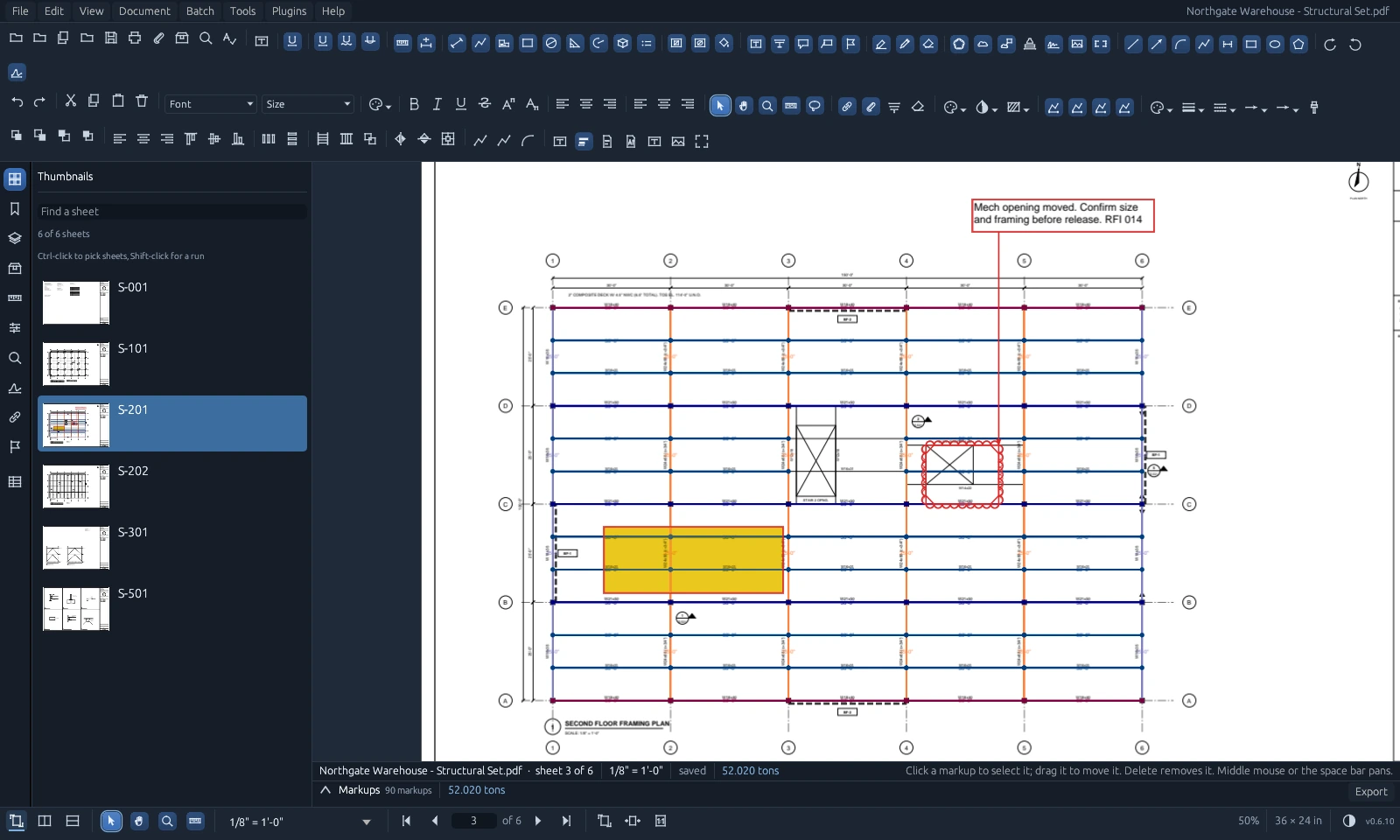
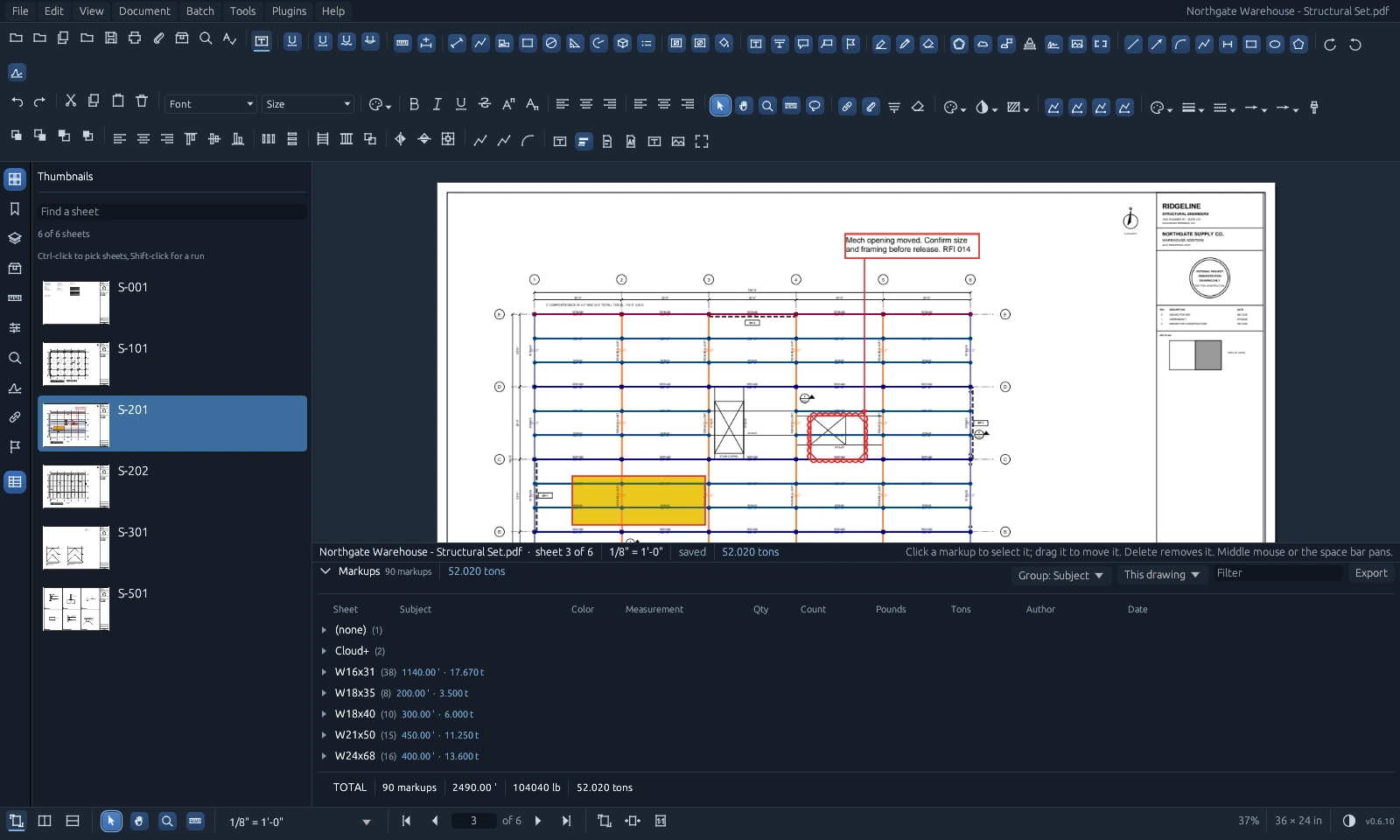
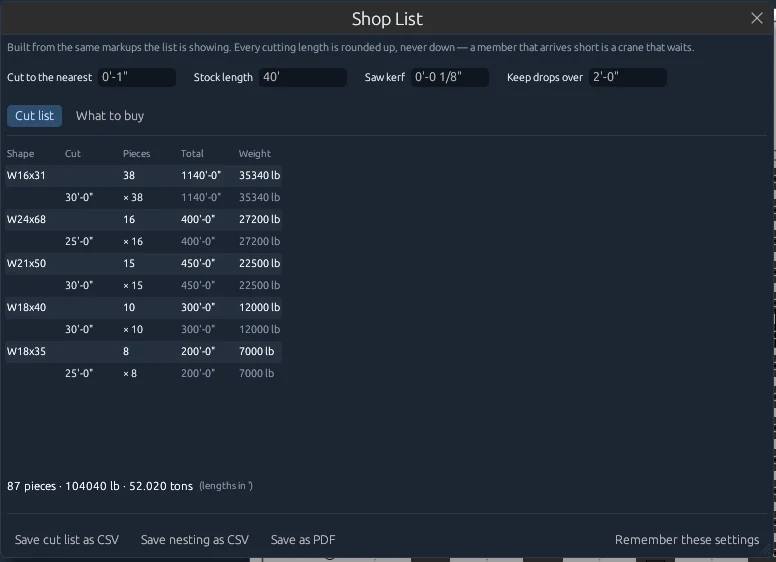
Screenshots from Excalibur View 0.6.10 on a fictional demonstration drawing set. The Shop List is from 0.5.5 and looks the same today.
Your jobs on shelves, the way you keep your files
In the Studio, with Office. Nothing changes for an office that doesn't use it.
Shelves
The Studio shows the office's jobs on shelves: Active Jobs, Bids by year, Lost Bids by year and Past Jobs by year, with a cancelled job in its year's Cancelled. Each shelf folds away and says how many are on it. Active jobs and bids start open.
Jobs nobody placed are under Other projects, and an office where nothing has a shelf sees the list it always did.
Moved for you
The program that keeps your jobs, like an estimating or ERP system, says where each one sits and moves it as a bid is won or lost and a job finishes. Nobody drags a job from shelf to shelf, and nothing on it changes when it moves.
It's two calls on the Office server's API. For developers.
Drawings in their folders
Inside a job, its drawings sit in the folders they came from in the job's own files, such as 01 Drawings or 10 Shop Drawings / For Fabrication. Nothing else from the share comes with them.
A drawing issued again replaces only the one of the same name in the same folder, with its takeoff carried across to check. S-101 for approval and S-101 for fabrication are kept as two drawings.
For developers: the API only grows. A route or field your program uses is never renamed, retyped or taken away, and every release is checked for it before it's built. Every release, in full.
An update says what's new, and waits for you
In the free app and in Office, on Windows and Mac.
In a box, with what's in it
When a new version is ready, a box in the middle of the window says which one and what's new in it, laid out the way it was written, with Restart now and Later.
Never in the middle of your work
Nothing restarts on its own. The box waits for a mouse button to be let go, so a markup you're dragging is finished first. Later leaves the new version to take over the next time the program opens.
Out of the way while it downloads
A small card in the corner says a new version is on its way. Help → Check for Updates answers in a small box too, and brings back a box you put off.
Click on the sheet and type. The words stay where you put them.
Text boxes, callouts and Cloud+ grow as you type. All of it in the free app.
Click and type
Pick Text Box and click where the words go, then type. The words go on the sheet as you type them, in their own size, colour and weight, and the box grows with them. Enter starts a new line.
Drag out a box instead and the words wrap inside it. The box gets taller as they run past the bottom.
The toolbar's font, size, colour, bold, italic and alignment change the words while you're still typing them.
Finished when you click away
Click anywhere else on the sheet, or press Esc, when you're done. You're back to picking things up, so the box can be moved or sized straight away.
A box left with nothing in it goes away. Double-click the words to change them.
Callouts, Cloud+ and Typewriter
A callout is two clicks: the thing it's about, then where the words go, and then you type. Its box grows away from what it points at, and the leader stays on the middle of its side. The words of a Cloud+ grow the same way.
Typewriter words have nothing drawn round them, on the screen or on paper.
Fixed in 0.6.12: words typed into a new text box could go nowhere, because a quick click put the box down and closed it in the same moment. Clicking away to finish a box no longer leaves an empty one behind. Every release, in full.
Move sheets around, change a drawing's own words, and reshape markups after they're down
Fill and blend boxes, Cloud+, your signature, and a Classic look.
Move sheets in Thumbnails
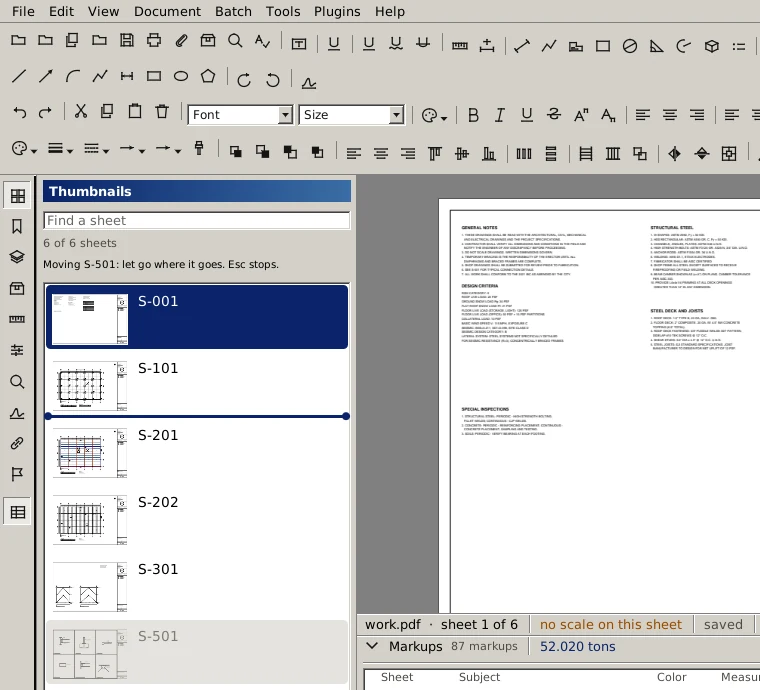
Drag a sheet up or down the Thumbnails list and let go where it belongs. A bar shows where it will land. Picked sheets move together, and the list scrolls when you drag near the top or bottom.
Drag a PDF from File Explorer or the Finder onto the list and its sheets go into the drawing where you let go. Right-click a sheet to insert pages from a file or a blank sheet, move it to the top or bottom, rotate it or delete it.
Markups move with their sheets, bookmarks and layers are left alone, and Undo puts it all back one step at a time.
Edit the drawing's words
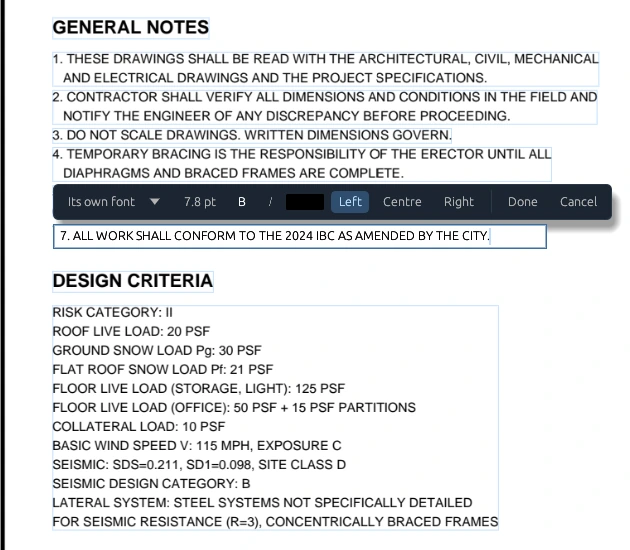
Edit → Edit Text outlines every paragraph on the sheet. Click one and retype it where it is. The strip above it sets the size, colour, bold, italic and alignment, and Done or Ctrl+Enter writes it into the drawing.
The lines of a note are one paragraph and wrap to the width the note already had. The words keep the drawing's own font when it has every letter they need; when it doesn't, the paragraph goes to the nearest standard font and the status line says which one and why.
Before the change is kept, the rest of the sheet is drawn again and has to come out exactly as it was. If it doesn't, nothing is written. Undo puts the words back. Lettering a CAD program drew as lines isn't text and can't be retyped.
Markups after they're placed
Pick a markup and it shows handles. Drag a corner or a side to resize it, drag a point to move just that point, and drag a callout's tip to aim its leader somewhere else. Pictures and signatures keep their shape unless you hold Shift.
Double-click a text box or a callout to retype it on the sheet. Boxes, circles and clouds now stay the size they were drawn.
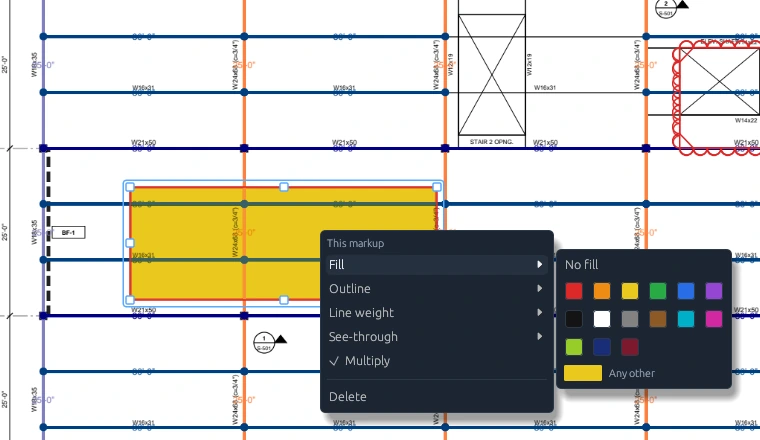
Right-click a markup for its fill, outline, line weight and see-through, in any colour you like. Multiply blends a fill into the drawing the way a highlighter does, so the linework under it still shows. The pen chooser has the same.
Cloud+
Drag out the cloud, click where the words go, and type. A leader runs from the cloud to the words. The cloud and its words move, copy and delete as one. Drag the words box by itself and the leader follows. Double-click the cloud to change the words.
Other PDF programs see an ordinary cloud and callout, grouped together.
Your signature
Markup → Signature. The first time, draw it with the mouse or a pen, or load a photo or scan of it on paper and the paper is taken out. It's kept on your computer, so after that it's one click. Initials work the same way, and you can keep more than one.
It goes down as a stamp that blends into the drawing, so the lines under it still show.
A Classic look
View → Classic Look turns the program grey, with raised buttons, sunken boxes and a navy band across panel titles, the way desktop software used to look. Nothing moves and every tool is where it was.
It's remembered, and it's a checkbox in Preferences too. One click puts the modern look back.
Also fixed in 0.6.10: a pasted box, circle, cloud, stamp or text box keeps its size and a callout's leader comes with it, and a save that only changed markups now counts every object, so stricter PDF readers read the whole file. Every release, in full.
Measurement and takeoff
One rule underneath all of it: every quantity traces back to a click or a confirmation. How a steel takeoff works.
- Length, polylength, area, perimeter, diameter, radius, angle, volume and count
- Area tools drag from corner to corner, or click corner by corner for an odd shape
- Area and ellipse cutouts
- Dynamic Fill: finds a bounded area from the drawing's own lines
- Calibrate a scale, or pick it from a list per sheet
- Snapping to line ends, intersections, circle centers and midpoints
- Ctrl turns snapping off while held; Shift squares a line up
- Quantity on any measurement (×6)
- Slope on a length, stored in the PDF with the markup
- Tool chests from .bpx profiles and .btx tool sets
- Custom columns and formula columns, like LBS per FT
- Sheets without a scale are reported and left out of totals
- Grid location on every markup, read from the grid bubbles
Reports
They all read the same markups the list is showing, so the numbers never disagree with each other.
- Markups list grouped by subject, sheet, label, type, author, status, color or drawing
- Export to Excel (numbers as numbers, with a Summary sheet), CSV, PDF, XML, HTML and JSON
- Shop List: cut list rounded up, weighed from your chest
- Nesting into your stock length with saw kerf and a keep-drops setting
- What to buy, and which drops go to the rack
- Counted Twice?: overlapping markups that measure the same thing
- Revision Cost: what moved between two issues and what it's worth
- Grid locations on the cut list
Markup
The markup tools you use every day, saved in the PDF in a standard form other PDF programs can read.
- Text box, callout, highlight and pen; double-click a text box or callout to retype it
- Cloud, and Cloud+: a cloud with a leader to its words, kept as one
- Line, arrow, arc, polyline and dimension
- Rectangle, ellipse and polygon
- Handles on a picked markup: resize it, move one point, re-aim a leader
- Fill, outline, line weight and see-through in any colour, and Multiply
- Your signature and initials, drawn or scanned once
- Edit Text: retype the drawing's own words in place
- Stamps, images and snapshots
- Move, copy, arrange, align and style markups
- Opens markups made in other PDF programs
- Tabs for several drawings; drag a PDF onto the window
- Thumbnails, bookmarks, layers and search
- Print dialog with vector output and markups included
Document and batch tools
Under the Document and Batch menus.
- Pick sheets in Thumbnails to print them or save them as a new PDF
- Combine, split and extract pages
- Combine from Explorer: select PDFs, right-click, Combine in Excalibur View
- A combined set gets one bookmark per file it came from
- Insert, delete, rotate and crop pages
- Slip sheet a revised set into the old one
- Number pages and create page labels
- Headers and footers
- Compare documents and overlay pages
- OCR for scanned drawings (on a Mac, with Tesseract installed)
- Lock a file with AES-256: a password to open it, one for the owner, and what others may do
- Opens sets somebody else locked, and says when a lock is a weak one
- Redaction and applying redactions
- Flatten and unflatten markups
- Reduce file size and repair a damaged PDF
- Stamps, signatures and seals
- Batch versions of the document operations
Steel models (IFC)
File → Open Model opens a detailer's model from Tekla or SDS2, in 3D, with its tonnage. See it.
- The whole model on screen in a moment; holes and copes cut in behind it
- Turn, move, zoom to the pointer, standard views and a parallel view
- Click a piece for its profile, mark, assembly, length and weight
- Measure between points, catching corners and edges, in feet and inches
- Colour by kind, profile, assembly, or where the weight came from
- Hide a kind of part, or cut away everything above a height
- Tonnage by profile from the model's own weights, and every part listed
- A 3D button on each takeoff row lights those pieces up in the model
- Bolts counted by size
- Save a picture at twice screen size, on a transparent background if you want
- Open in Excalibur View on an .ifc file's right-click menu in Windows
- Reads the file and never changes it
Excalibur View Office
The server runs on a machine you own, and everything the desktop does goes through a documented API on it, so you can wire your own tools in. $250 a seat, once.
- Shared projects and drawing sets
- Live markups: another person's markup appears within seconds
- One tool chest shared from the server to every seat
- Reissued sets supersede the old ones and carry the takeoff forward, flagged for checking
- Office plugins: signed, sealed off, and only in your office, with your own plugin key if you want one. Write your own
- Change notices: the server tells your ERP or scheduling program when a set's markups change. How
- User accounts, a join code, and invitations that name the person and run out
- Name people on a job and it becomes theirs; administrators see everything
- Reach the office from a jobsite through your own Cloudflare tunnel, with nothing opened on the firewall
- The office decides when seats update, and can hold every seat on one version
- Documented API (OpenAPI) for estimating software or an ERP. For developers
- Runs as a Windows service, including on Server Core
- Firewall opened to your office network only
- One data folder to back up
- Links like hyperview://open that open a set at a sheet
Performance and deployment
On a tablet? iPad and Android are being built.
- Sheets drawn in parallel, and the next pages loaded ahead of you
- Windows 10 and 11, and Windows Server 2016 through 2025
- macOS 11 Big Sur or later: one universal build for Apple Silicon and Intel, signed and notarized by Apple
- Works over Remote Desktop, with a separate copy and settings per person
- No graphics card required
- Installs per user with no administrator and no PowerShell
- Signed updates, checked on every seat before they install
- Updates install the next time the app opens, never mid-takeoff
- A built-in benchmark that writes frame and tile times to a file
Put it on your own drawings
Free for one person, no account. Office runs free for 30 days.